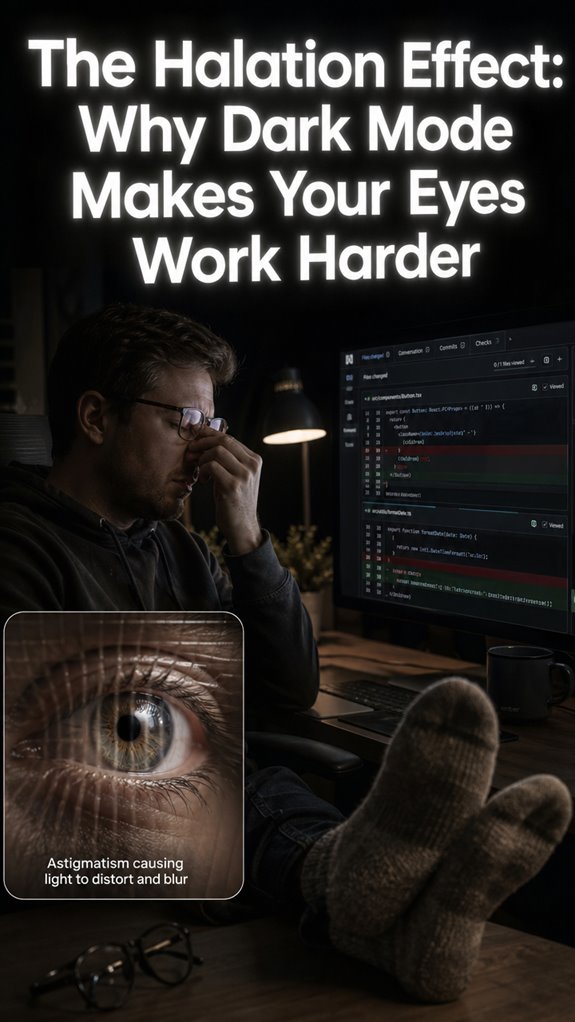
Ever caught yourself squinting at your monitor like you’re deciphering ancient scrolls? That’s digital eye strain, and I finally cracked the code on it.
Last winter, my eyes were so fried after a twelve-hour debugging session that I started seeing phantom syntax errors in my peripheral vision. Not ideal.
I fixed my setup like I’d refactor legacy code. Raised my monitor to eye level. Cranked contrast, killed the glare, slapped on night mode. Set a timer for the 20-20-20 rule. Sounds basic but skipping it? That’s technical debt for your eyeballs.
The real game changer? I started actually blinking. Revolutionary, I know. Your IDE deserves better than your face two inches from the screen.
—
When Blue Light Filters Failed Me: My Developer Eye Strain Horror Story
The f.lux app betrayed me. Or maybe I betrayed myself by ignoring the actual problem.
Three years ago, I was grinding through a React migration, convinced my amber-tinted screen was my shield. It wasn’t. My ophthalmologist laughed politely when I described my “rigorous digital wellness routine” while sitting in her office with inflamed corneas and tension headaches that felt like miniature npm install processes running behind my eyeballs.
Turns out I needed actual breaks, not just software patches. She recommended the Pomodoro technique for eye health, proper ambient lighting, and ergonomic assessment. Blue light blockers helped, but dry eye disease and screen distance mattered more than I admitted. Now I keep preservative-free artificial tears on my desk like a shameful secret. My Visual Studio Code theme switched to “Quiet Light” during day hours. Small wins.
Quick Takeaways
- Practice the 20-20-20 rule: every 20 minutes, look at something 20 feet away for 20 seconds.
- Adjust screen brightness and contrast to ambient light, reducing glare and minimizing eye strain.
- Regularly blink consciously to maintain tear film stability and prevent dryness.
- Use blue light filters or night mode to reduce digital energy overload on your eyes.
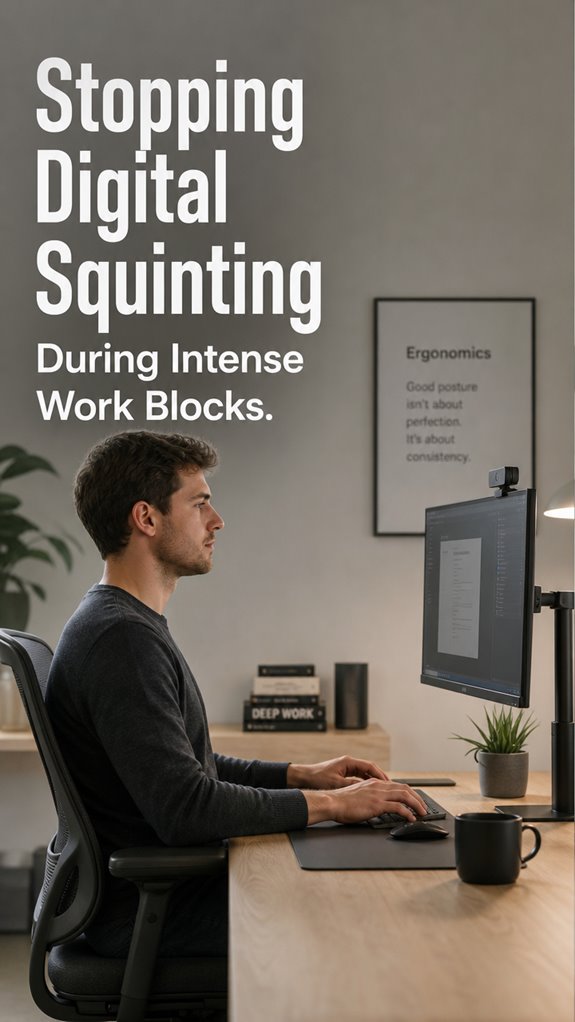
- Ensure your monitor is ergonomically positioned at eye level to promote proper alignment and reduce squinting.
What Causes Digital Squinting During Work?
When it comes to digital squinting during work, the root cause isn’t just a random quirk of human biology but an unfortunate cascade of systemic failures within your visual ecosystem, akin to software bugs in a high-stakes database.
Your eyes attempt to optimize pixel focus, but constant near-field convergence and accommodation thrash the focus module. Blink rate drops like a deprecated API, leading to tear-film fragmentation, which degrades visual integrity faster than a corrupted OS.
Glare, blue light overlays, and pixelated fonts increase computational load on eye muscles, pushing your ocular processors into a perpetual, “Ghost in the Shell”–like debugging nightmare — and your hardware just can’t keep up. Incorporating grounding socks for comfort may help alleviate some physical tension while you work, supporting overall wellness and comfort.
How Can You Tell If Your Eyes Are Strained?
Digital eye strain is the equivalent of a software bug manifesting silently, invisible until it crashes your productive output—except here, the malfunction is your own visual hardware degenerating under relentless near-focus loops.
You can tell if your eyes are strained by:
- Habitual eyelid narrowing, akin to code minification—compressed, restricted focus.
- Persistent headaches, like memory leaks—you don’t realize how much data it’s draining.
- Dryness, burning, grit—a signal that your ocular tear protocol has failed.
- Drifting text or double vision, reminiscent of a UI rendering glitch—your convergence algorithm is off.
Run a system check before your next refactor, or risk a total visual system failure.
What Are Simple Ways to Rest Your Eyes During the Day?
In the grand architecture of your day-long coding marathon, the first step toward minimizing system crashes is acknowledging that your eyes, much like outdated middleware, need periodic restarts to prevent catastrophic failure.
Simple methods include initiating micro-breaks every 30-45 minutes—akin to software patching—by closing your eyes for 30 seconds, performing distant focus shifts, or blinking deliberately. These routines act as system refreshes, avoiding the dreaded “blue screen” of ocular fatigue.
Think of your eyes as a Ghost in the Shell—an entity relentless in processing visual data but susceptible to overload. Regularly resetting is the only way to keep the interface functional. Additionally, incorporating stretches that enhance fascia elasticity can also relieve tension in the surrounding muscles and improve overall comfort during prolonged periods of focus.
How Do You Adjust Screen Settings for Eye Comfort?
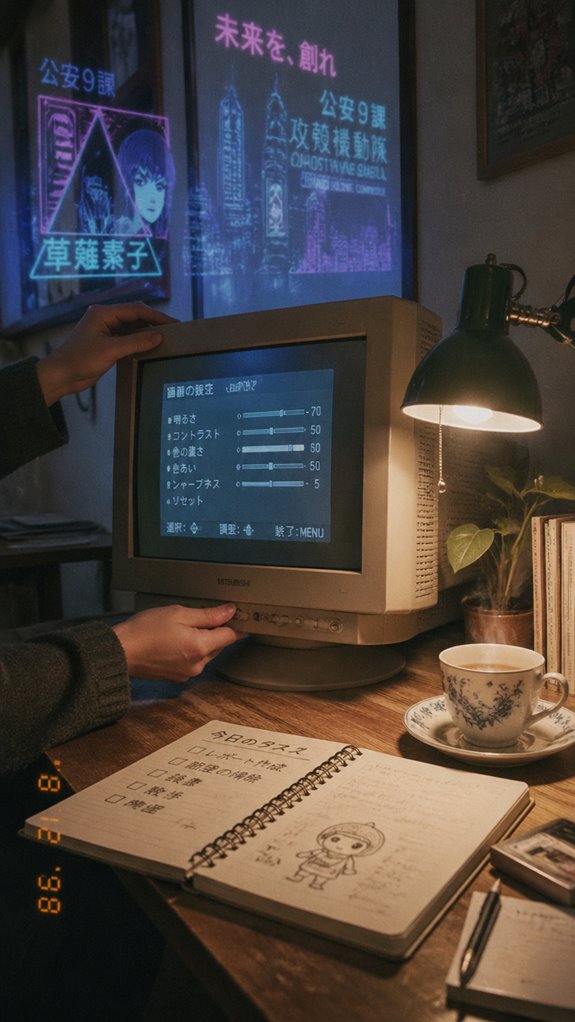
Adjusting your screen settings for eye comfort resembles debugging a notoriously flaky app—every parameter tweak can either optimize performance or crash the system entirely.
Begin with fundamental system parameters:
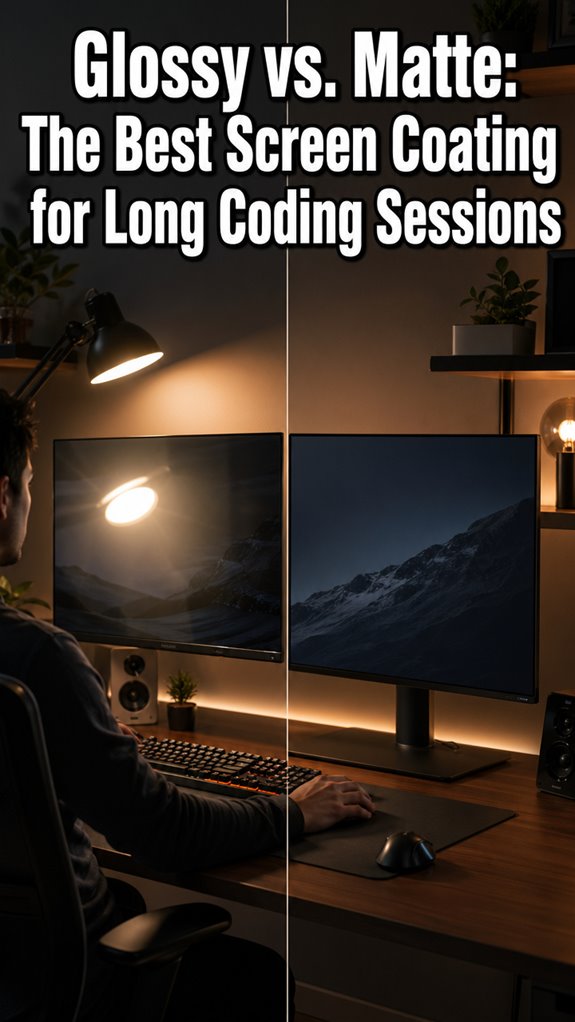
- Set brightness to match ambient light, avoiding “blue screen of death” in the dark or glare overload in bright rooms.
- Increase font size and contrast—think API calls, not tiny logs—reducing the need for constant squinting.
- Enable blue-light filters or toggle ‘night mode’; it’s like installing a patch in your visual cortex during those long shifts.
- Adjust monitor height and viewing angle; because even HAL malfunctioned when misaligned.
Control the variables; don’t wait for a full system crash. Nerve compression can contribute to issues like numbness in your fingers, so maintaining proper posture is crucial.
Long-Term Habits to Protect Your Eyes During Heavy Screen Time
When managing the sprawling, codebase-like architecture of your daily screen time, it’s imperative to implement long-term habits—lest your ocular infrastructure suffer a meltdown akin to a kernel panic during peak load.
Like debugging a circular dependency, you must embed disciplined routines: blinking more on command (because automating tear stability is a myth), adopting consistent visual refresh cycles, and optimizing your environment to avoid sensory leaks—glare, flicker, and pixelato.
These micro-efforts are bug fixes for the flickering ghost in your shell, preserving system integrity. Without it, your eyes will crash as inevitably as a server in need of a patch—so better to preempt than recover. Incorporating tools like top vertical mice can enhance your setup for more comfortable computing, aligning ergonomics with prolonged screen usage.
Ergonomic Blue Light Glasses
As we continually push the limits of our visual system’s endurance, it becomes clear that hardware upgrades—think, software patches for tired eyes—can be a game-changer in our relentless pursuit of code perfection.
Enter ergonomic blue light glasses, the Flux Capacitors of eye health. They:
- Filter blue light, reducing cumulative strain, much like debugging a code’s memory leaks.
- Minimize glare, preventing squint-induced crashes in focus.
- Promote proper contrast, combating lower signal-to-noise ratios on screens.
- Support blink rates, acting as ergonomic middleware between your eyes and pixel chaos.
Because, ultimately, avoiding a “Ghost in the Shell” scenario requires more than manual micro‑breaks—it demands system-level optometry.
Screen Distraction Increases Fatigue
In the digital ecosystem of your workstation, the relentless barrage of notifications, multiple open windows, and the omnipresent chat ping serve as digital event storms that crash your cognitive server, forcing your ocular hardware into a perpetual state of viewpoint shifting. This constant environment-changing overload results in ocular resource exhaustion, akin to a memory leak in a poorly optimized app.
Distraction fragments your focus—each alert demanding attention, each window vying for processing cycles—accelerating fatigue. Like Ghost in The Shell’s layered code, your visual system struggles beneath the mounting load, where division of attention becomes a recursive bug, compounding strain and eroding performance. Furthermore, the prolonged exposure to screens can lead to blurry vision symptoms, creating an additional layer of discomfort that intensifies eye strain.
Targeted Eye Relaxation Exercises
Digital systems are inherently fragile, prone to memory leaks and cascading failures when overloaded—much like your ocular hardware during relentless screen sessions.
Targeted eye relaxation exercises serve as system patches, preventing catastrophic freeze states.
Incorporate these micro-ops:
“`markdown
- Focus on a near object for 10 seconds, then shift focus to a distant point for 10 seconds—like debugging focus jumps.
- Perform slow, deliberate eye rolls clockwise and counterclockwise—manual code refactoring for ocular muscles.
- Blink rapidly for 5 seconds, then consciously blink slowly—simulating aggressive patch deployment followed by stabilization.
- Close eyes tightly for 3 seconds, then open wide—akin to hot-restart sequences before system shutdown.
“`
Executing these keeps the hardware humming—less Ghost In The Shell, more #winning. Additionally, consider using caffeine gum as a quick pick-me-up during extended work sessions to further enhance your focus and energy levels.
Adjust Monitor Height Altogether
When your physical hardware—specifically, the monitor—sits misaligned with the underlying skeletal kernel, entire system processes start suffering from avoidable bottlenecks reminiscent of a classic software conflict. Only this time, the bug is embedded in your posture.
A discordant view hierarchy triggers cascading failures: neck strains, ocular convergence spasms, and an overtaxed accommodation system—think of it as running a debugging session while your visual API throws exceptions.
Adjusting monitor height altogether becomes the equivalent of a kernel patch—replacing everything with a more cohesive, ergonomic interface. Proper ergonomic setups enhance developer productivity, allowing for longer and more comfortable work sessions without the added stress of discomfort.
Ghost in the Shell warns us: hardware mismatches kill performance. Don’t be the legacy code crashing under your own ergonomic debt.
FAQ
How Can I Prevent Digital Squinting if I Work Long Hours?
To prevent digital squinting during long work hours, you should take scheduled breaks, follow the 20-20-20 rule, increase blink rate, optimize your workspace, and use blue-light filters and ergonomic setups, maintaining eye health and reducing strain.
Are There Specific Eye Exercises to Reduce Digital Eye Strain?
You’re the conductor of your vision orchestra—try focusing on distant objects, then near ones, slowly shifting. Blink intentionally, and practice rolling your eyes gently to release strain, commanding your eyes to stay relaxed and in control.
What Dietary Habits Support Healthier Eyes During Screen Use?
You should eat foods rich in omega-3s, antioxidants, and vitamins A, C, and E to boost eye health. Drink plenty of water, avoid excessive caffeine, and limit processed foods to maintain ideal moisture and reduce strain during screen use.
Can Digital Eye Strain Affect My Long-Term Vision Health?
Research shows digital eye strain doesn’t directly cause long-term damage but can increase discomfort and temporary vision issues. By managing it proactively through breaks and proper ergonomics, you control symptoms and protect your vision health effectively.
Do Certain Medications Contribute to Increased Eye Dryness or Discomfort?
Certain medications, like antihistamines, antidepressants, and decongestants, can reduce tear production. You can control this by discussing with your doctor about alternatives, maintaining eye hydration, and using artificial tears to minimize dryness and discomfort.
References
- https://www.takhareyecare.com/blog/the-impact-of-prolonged-screen-time-can-it-lead-to-squinting.html
- https://www.londonsquintclinic.com/squint-and-computer-work-digital-eye-strain-solutions/
- https://www.evolutionaryeyecare.com/blog/digital-eye-strain-in-the-workplace.html
- https://www.aoa.org/healthy-eyes/eye-and-vision-conditions/computer-vision-syndrome
- https://bloomfield-nwestern.refocuseyedoctors.com/article/digital-eye-strain-and/
- https://gileseyecare.com/blog/preventing-digital-eye-strain-in-the-workplace/
- https://northfultoneyecenter.com/digital-eye-strain-in-the-modern-workplace-prevention-and-treatment/
- https://pmc.ncbi.nlm.nih.gov/articles/PMC9434525/
- https://my.clevelandclinic.org/health/diseases/24802-computer-vision-syndrome
- https://www.ophthalmology-ct.com/blog.php?/2026/17824/digital-eye-strain/
- https://www.richenseyecenter.com/blog/eye-care/the-real-reason-your-eyes-feel-tired-after-screen-time/
- https://southwesteye.com/blog/excessive-screen-time-on-eyes-effects-how-to-fight-back/
- https://www.thevisioncenter.net/digital-eye-strain-how-screen-time-at-work-may-be-harming-your-vision/
- https://www.npeyes.com/too-much-screen-time-it-may-lead-to-digital-eye-strain/
- https://www.smgoregon.com/too-much-screen-time-how-devices-impact-your-eye-health/