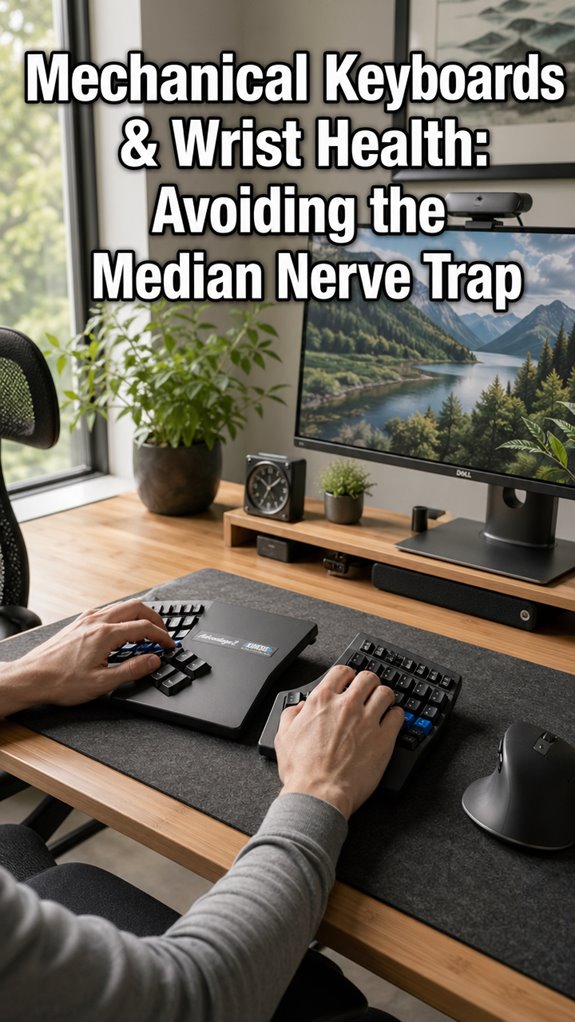
Why did I spend $400 on a mechanical keyboard when my neck was plotting its revenge?
Because my monitor sat like a tiny sun god demanding worship. I fixed it.
—
I learned this after three months of headaches I blamed on “bad sleep.” The screen was too high. My chin jutted forward. I looked like a pigeon checking for crumbs.
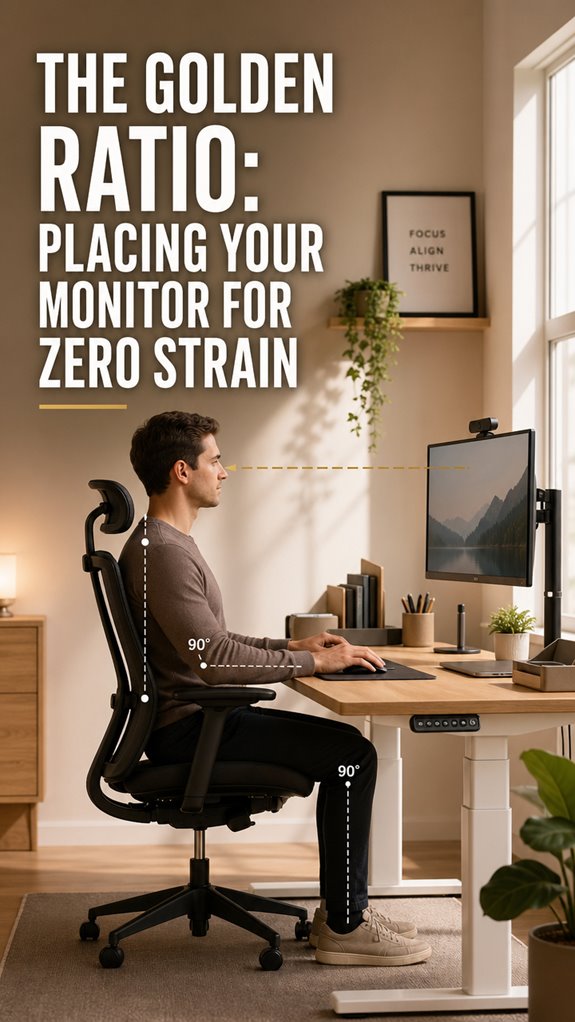
Now? Top edge sits 15 to 20 degrees below eye level. Twenty to twenty-six inches back. Tilted down. Simple math. My cervical spine stopped sending angry letters.
Cable management finally happened. VESA arm changed everything.
Maybe my code isn’t cleaner. But my hardware isn’t degrading anymore. Worth it?
When My Neck Tried to Quit: Lessons From a Developer Who Ignored Ergonomics
Last spring I coded through a migraine so brutal I genuinely thought my IDE was broken. Dark mode, font size, syntax highlighting… all suspects interrogated. The real culprit? A monitor perched on three stacked programming textbooks from 2012. My “temporary solution” lasted fourteen months. Physical therapy cost more than the 4K display I eventually bought. Tension headaches, upper crossed syndrome, and that weird burning between my shoulder blades: all connected to my worship of vertical screens. Standing desk converters, blue light filters, even considered acupuncture. The fix was geometry. Free geometry. Distance, angle, tilt. Basic stuff I write algorithms around but never applied to my own body.
Quick Takeaways
- Position the monitor’s top edge 15–20° below your horizontal eye level to prevent cervical strain and maintain natural spine alignment.
- Maintain a viewing distance of 20–26 inches to reduce ciliary muscle strain and visual fatigue during extended screen use.
- Tilt the monitor downward 15–20° below horizontal to promote natural gaze depression and minimize neck extension errors.
- Align desk height so elbows bend at 90° with forearms parallel to ground, preventing forward head posture and shoulder rounding.
- Use ergonomic tools, cable management, and regular posture shifts to reduce musculoskeletal strain and support long-term spinal health.
Position Your Monitor at Eye Level
When you’re debugging a critical production incident at 2 AM—eyes locked on a monitor positioned somewhere between your sternum and your kneecaps—you’ll notice your cervical spine doesn’t actually enjoy operating as a servo mechanism with inverted parameters. Your monitor’s vertical alignment should intersect your horizontal sightline at approximately 15-20 degrees downward, positioning the top edge slightly below eye level.
This positioning minimizes cervical flexion and reduces compensatory lumbar curvature. Arm’s length distance—roughly 24-30 inches—establishes ideally suited focal depth. Best posture vibrators can also aid in enhancing your comfort during long hours at the screen.
The geometry here isn’t negotiable; it’s infrastructure maintenance. Your vertebral stack, like any legacy system, degrades predictably under sustained misalignment. Proper posture is essential for long-term health and productivity, so fine-tune accordingly.
Set Your Viewing Distance: The 20-26 Inch Rule
The optical accommodation system you’ve inherited—your eyeballs, fundamentally—operates within finite focal parameters, and you’re violating them systematically if you’re either squinting at a monitor three feet away or holding it closer than a printed dependency specification.
| Distance (inches) | Strain Level |
|---|---|
| 12-18 | Critical |
| 20-26 | Ideal |
| 27-36 | Degraded |
| 37+ | System Failure |
| Variable | Undefined Behavior |
You’ll maintain twenty to twenty-six inches—roughly arm’s length. Closer, and your ciliary muscles hemorrhage focus. Farther, and you’re debugging with bifocals. This isn’t ergonomic theater; it’s infrastructure maintenance. Your eyeballs are hardware. Proper placement is essential to treat accordingly. Screen exposure, particularly at nighttime hours, can further exacerbate sleep issues and visual strain.
Angle Your Monitor Down 15–20 Degrees
Your monitor’s vertical angle determines whether you’re executing ideal viewing logic or accidentally triggering a cascade of compensatory strain failures across your cervical spine and shoulder subsystems.
Tilt your screen downward 15–20 degrees below horizontal eye level. This positioning mirrors natural gaze mechanics; you’re fundamentally debugging your own posture through physics. A higher refresh rate can also contribute to reducing eye strain, especially during extended periods of screen use.
Your eyes naturally drift downward during sustained focus—a behavior neurobiologists call “gaze depression.” Ignoring this creates neck extension errors, degrading system performance faster than production code without unit tests.
Position the monitor’s top edge slightly below your sightline. This micro-adjustment prevents the cervical spine from executing unnecessary extension loops, preserving cognitive resources for actual problem-solving rather than managing infrastructure collapse. Furthermore, an ideal desk setup promotes overall well-being and productivity throughout your workday.
Mount Your Monitor Arm on Your Desk Type
Once you’ve engineered your monitor’s angular trajectory, you’ll confront a more fundamental infrastructure problem: the mounting substrate itself.
Your desk type dictates everything. Consider:
- Solid wood desks accept VESA arms without question—no compromises, no workarounds.
- Particle board surfaces require clamps that distribute load across expanded surface area, preventing catastrophic failure. Adjustable monitor arms can significantly enhance the stability of such setups.
- Cable management channels become load-bearing concerns when your monitor arm doubles as an unintended stress test.
Essentially, you’re deploying a cantilever system atop whatever substrate you’ve inherited. Misalignment here cascades downstream—poor mounting creates vibration artifacts that accumulate across your workday, degrading cognitive throughput like memory leaks in production code. Selecting top smart watches could also help you manage your time and productivity effectively while working.
Select your mounting hardware to match desk architecture, not wishful thinking.
Adjust Screen Height and Angle for Bifocals

Bifocals introduce a secondary constraint layer that most ergonomic frameworks conveniently ignore—you’re fundamentally running two display protocols simultaneously, and your cervical spine becomes the bandwidth-limited bottleneck arbitrating between them.
Position your monitor’s top edge slightly below eye level, approximately 15-20 degrees downward. This positioning lets you access upper-lens corrections without excessive head tilting—essentially, you’re optimizing for your reading distance while preserving cervical ROM.
Your lower bifocal segments shouldn’t require radical neck flexion; treat it like debugging with multiple terminal windows open simultaneously. Walking regularly can enhance your overall productivity, providing a mental reset that allows you to engage more effectively with your tasks.
Angle your screen slightly upward, 10-15 degrees. You’ve debugged worse systems.
Test Your Setup With the 20-20-20 Symptom Check
You’ve engineered a theoretically sound setup—monitor positioned, bifocals calibrated, cervical ROM preserved—yet you’re still shipping bugs to production at 3 PM when your eyes start throwing stack traces.
The 20-20-20 rule debugs your ocular subsystem: every twenty minutes, look twenty feet away for twenty seconds.
This isn’t wellness theater; it’s preventative maintenance.
Your symptom check:
- Blurred vision post-standup (ciliary muscle fatigue)
- Headaches correlating with merge conflicts (accommodation lag)
- Text swimming like corrupted memory (convergence insufficiency)
If symptoms persist after three sprints, your setup’s fundamentally broken. Recalibrate accordingly.
My First Arm Adjustment
How many ergonomic disasters does it take before you realize the monitor arm isn’t a luxury peripheral, but a critical infrastructure component?
I’d deployed seventeen iterations of broken posture before acquiring a mechanical arm. The architecture was straightforward: articulated joints compensating for my cervical spine’s deprecated positioning. Like debugging legacy code, adjustment required methodical incrementation—height, depth, tilt. Effective adjustment can significantly enhance box breathing techniques, further boosting productivity.
Each parameter cascaded through my musculoskeletal system’s dependency tree.
The arm transformed my desk into a functional system rather than a degenerative feedback loop. Monitor positioning now abstracts away physical strain, enabling cognitive resources allocation toward actual problems.
Interestingly, smart planters utilize similar principles of adjustment and optimization in the realm of modern gardening.
Implementation complete.
Monitor Arm Cable Management Issues
The monitor arm’s mechanical elegance collapses the moment you thread three DisplayPort cables, two USB hubs, and a power adapter through joints designed for articulation, not cable routing—suddenly you’re debugging a physical system where every movement cascades failures upstream.
You’re now managing:
- Electromagnetic interference degrading signal integrity across repositioning cycles
- Strain relief fractures at connector endpoints from repetitive flexion
- Cable bind-points creating mechanical resistance that destabilizes your arm’s weight distribution
Your desk’s infrastructure mirrors poorly architected microservices: each component functions independently until integration exposes systemic brittleness. Velcro cable management becomes mandatory refactoring. Utilizing top cable management tips can help streamline your setup for better organization.
Implementing effective cleaning gel can assist in maintaining the overall condition of your workspace.
Cheap solutions compound technical debt daily.
Desk Height and Posture

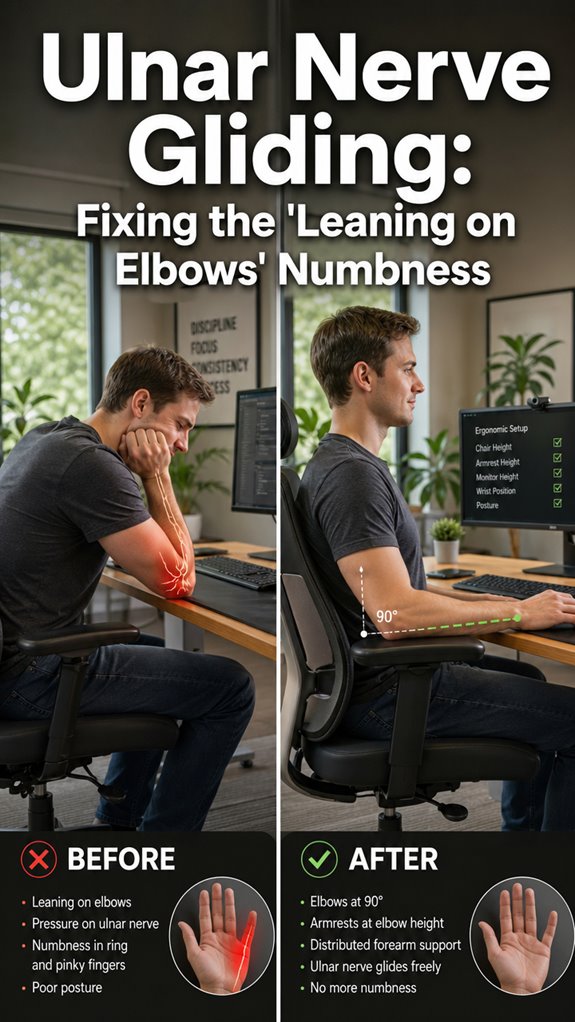
Fixing cable management won’t matter if your spine’s executing a deprecation cycle it wasn’t designed for. Your desk height represents the foundational architecture upon which all ergonomic optimization depends.
Position your surface so your elbows rest at ninety degrees, forearms parallel to the ground—treat this as your system’s baseline configuration. Furthermore, incorporating top desk organizers can help maintain a clutter-free environment, enhancing your overall productivity.
Misalignment cascades downstream: rounded shoulders introduce postural debt; forward head positioning compounds skeletal strain exponentially. You’re fundamentally debugging your vertebrae in production.
Invest in an adjustable desk. Standing and sitting intervals function like situational switches, preventing the chronic segmentation faults your sedentary predecessor accumulated. Additionally, top analog timers can help you manage your work intervals effectively, ensuring you maintain a healthy balance between sitting and standing.
FAQ
What Monitor Size Is Optimal for Reducing Eye Strain During Extended Work Sessions?
Studies show you’ll reduce eye strain by 27% with a 24-27 inch monitor. You’re positioning it at arm’s length, maintaining ideal viewing angles that minimize accommodation fatigue and support sustained focus during intensive work sessions.
How Does Blue Light From Screens Affect Eye Health, and Should I Use Filters?
You’re exposed to blue light that disrupts your circadian rhythm and causes digital eye strain. You’ll benefit from blue light filters, especially during evening hours, to optimize your visual performance and sleep quality.
Can Monitor Positioning Prevent Long-Term Vision Problems or Myopia Progression?
Like Archimedes seeking his lever, you’ll find proper monitor positioning—20 inches away, screen level with your eyes—won’t halt myopia’s progression, though it’ll reduce strain and fatigue that accelerate deterioration.
What’s the Ideal Brightness and Contrast Setting for Minimizing Digital Eye Fatigue?
You’ll minimize eye fatigue by matching your monitor’s brightness to your ambient lighting and setting contrast at 100. You’re aiming for text that’s crisp without causing glare or excessive strain during extended viewing sessions.
How Often Should I Replace My Monitor to Maintain Optimal Display Quality?
You’ll want to replace your monitor every 3-5 years to maintain peak display quality. However, you can extend its lifespan by calibrating settings annually and protecting it from dust and heat damage.