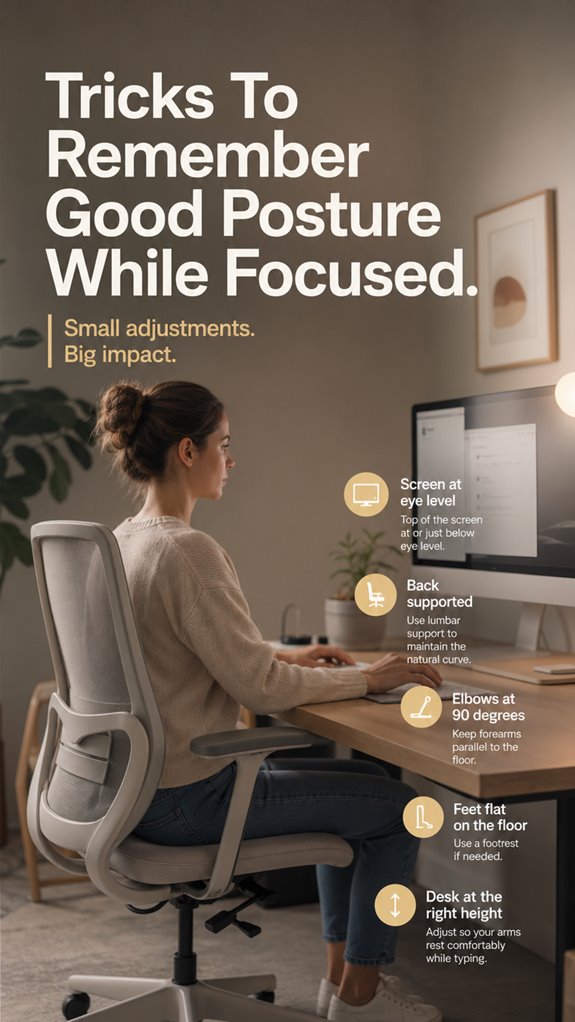
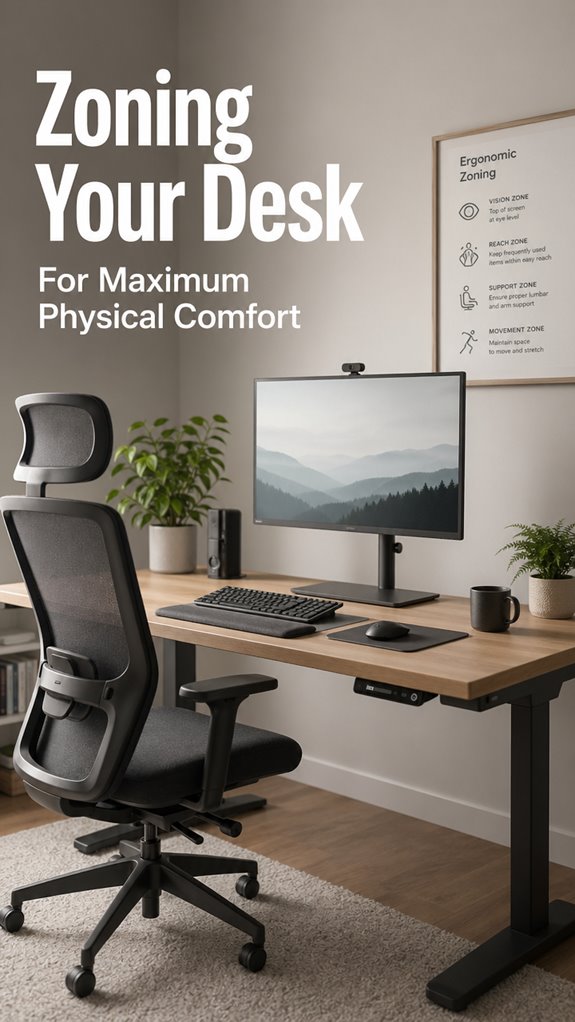
Tired of ending the day feeling like a crumpled commit message? I finally fixed my desk setup, and my back stopped threatening to file a resignation letter.
Spent three years treating ergonomics like optional documentation. Big mistake. My monitor sat too low, my keyboard too high, my shoulders permanently scrunched like badly nested callbacks. The pain was technical debt I couldn’t ignore.
Now I zone my desk like I structure code: monitor at eye line, keyboard floating where my elbows drop naturally, mouse within casual reach. No stretching, no strain. I take breaks before my IDE’s productivity timer shames me.
It is not perfect. Some days I still slouch. But mostly, my body thanks me.
Why Neck Pain from Poor Monitor Height Destroyed My Sprint Velocity
Last quarter, I measured my actual screen position: six inches too low. My chin jutted forward like a merge conflict waiting to happen. Headaches blurred my standups. I tried books under the stand, then a monitor arm from Amazon Basics that wobbled like legacy code. Finally invested in a proper VESA mount. Difference was immediate. My SCM commits became readable again. If you are stacking textbooks right now, stop. Your cervical spine is not a staging environment. Related: blue light filters, standing desk converters, the 20-20-20 rule for eye strain, and why Herman Miller costs what it costs.
Quick Takeaways
- Map critical work zones: monitor, keyboard, mouse for easy access and ergonomic efficiency.
- Position the monitor at eye level and the keyboard and mouse at elbow height to promote neutral posture.
- Designate movement and break zones to encourage micro exercises and reduce stiffness.
- Use adjustable stands and ergonomic supports to optimize device positioning and comfort.
- Ensure proper lighting and seating adjustments to minimize glare, shadows, and postural strain.
How to Identify Your Work Zones for Better Posture
How do you debug a posture malconfiguration when the entire system—a.k.a. your body—lags behind the relentless cadence of meetings, bug reports, and code commits? It’s like running a “Ghost in the Shell” debug routine on your physical infrastructure, except hardware failures manifest as neck pain and shoulder cramps.
Begin by mapping critical processes—monitor, keyboard, mouse—where your user interface is most frequently interacted with. These are your core modules.
Assign them to zones based on reachability and ergonomic efficiency, ensuring your posture configuration isn’t just functionally optimized but also resistant to the chaos of development chaos. Incorporating short walking breaks throughout your day can enhance focus and reduce discomfort.
Control your zones or risk being the software version of a system crash.
Arranging Your Key Items to Support Neutral Posture
When you’re debugging your daily efficiency, the first sign of systemic failure often reveals itself in the misalignment of your key input devices—your core API, the interface between conscious intent and physical execution, reminiscent of a “Ghost in the Shell” scenario where hardware and software diverge.
You control this infrastructure by strategically positioning your keyboard, mouse, and documents. Keep the keyboard at elbow height, the monitor at eye level, and the mouse within a millisecond reach. Incorporating vibration plates into your routine can also enhance your overall physical comfort and performance during long work hours.
This minimizes latency in execution, reduces unnecessary “reaching” code, and ensures your system remains in a neutral posture—analogous to maintaining ideal system uptime through diligent hardware configuration.
Creating a Movement and Break Zone to Prevent Stiffness
In the grand architecture of a sustainable workspace, neglecting deliberate movement buffers is akin to deploying a server with no load balancer—inevitably, you’ll experience latency spikes, stiffness, and crashes.
As a dev, your body’s infrastructure is just as fragile, susceptible to microfissures from prolonged static states. Establish a designated movement and break zone—think of it as a watchdog thread—interrupting the main process before total system failure.
Engage in small shifts: stretch, walk, or do micro exercises like Torvalds rebooting a frozen kernel. It’s your Gideon, preventing “Ghost in the Shell”—minus the sci-fi—while keeping your ergonomic cache intact. Additionally, incorporating regular eye exercises can help alleviate discomfort from extensive screen time.
Positioning Your Desk and Monitor for Ergonomic Comfort
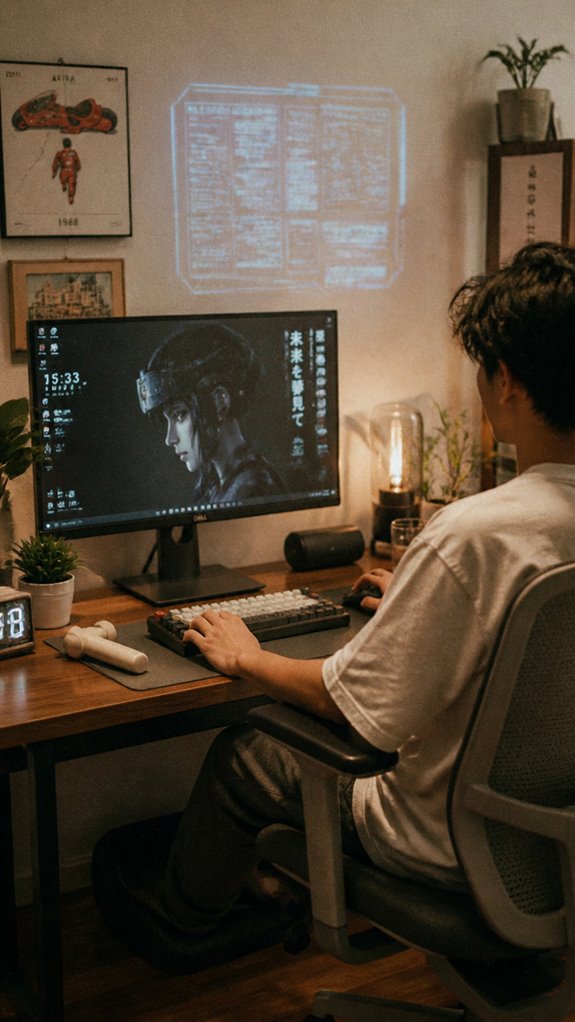
If your ergonomic setup were a bug in production, neglecting proper positioning of your desk and monitor would be akin to deploying a memory leak—eventually, the system crashes.
As a developer, you understand the importance of baseline configurations for system stability; similarly, your monitor should be precisely aligned at eye level, 20-26 inches from your primary processing node—your face.
Keyboard and mouse need to sit at elbow height, creating a natural input pipeline.
Anything else—like Microsoft’s “Ghost in The Shell”-esque illusions of seamless workflow—becomes a software bug in your physical infrastructure, risking user fatigue and lowering code quality, or in this case, your immune system’s resilience. Consider integrating tools like cane massagers to enhance your relaxation and promote better posture, especially during long coding sessions.
Adjustable Monitor Stands
Like debugging unpredictable code, fine-tuning monitor height demands granular control to avoid crashes: neck strain, eye fatigue, and the dreaded ghost in the shell.
With these stands, you can upgrade your infrastructure—preventing system failure, one pixel at a time. Adjustable monitor arms also reduce discomfort by allowing you to optimize your working posture throughout the day.
Uneven Light Distribution
Have you ever deployed a patch without addressing your desk’s lighting infrastructure, only to find shadows, glare, and color temperature chaos rendering your debugging equally frustrating?
This systemic flaw mimics “Ghost in The Shell”—a complex, layered operation where failing to address core components sabotages the entire process.
Uneven illumination forces your pupils into constant readjustment, undermining focus and reducing ocular throughput by 50%. Shadows obscure your syntax, glare distorts color accuracy, and fluctuating Kelvin ratings fracture visual coherence, making even the most optimized workstation feel like a poorly coded UI.
Without a system upgrade—consistent, controlled lighting—you’re just debugging in the dark, literally.
Ergonomic Seating Tips
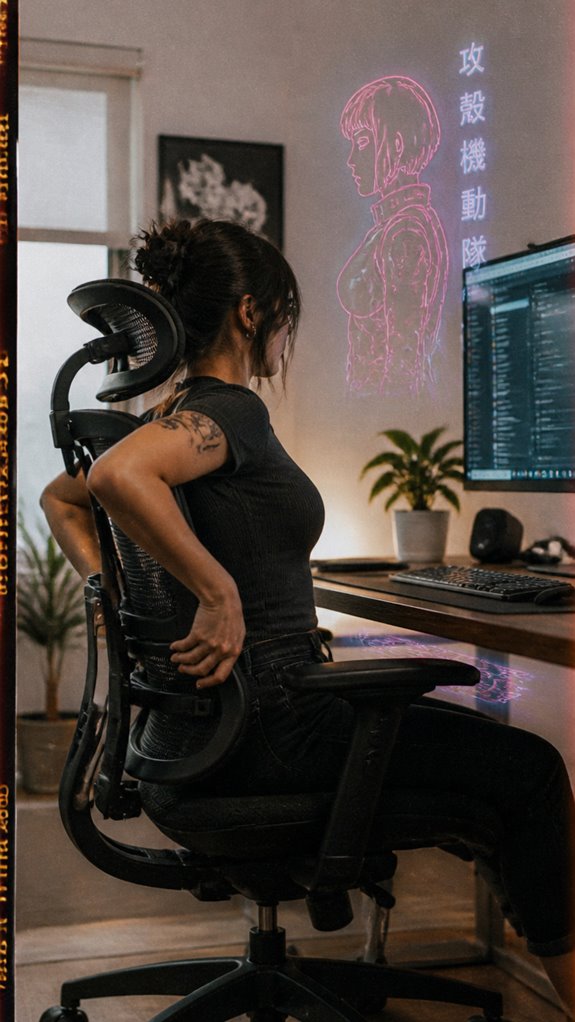
In the relentless cycle of debugging our physical workspace, neglecting ergonomic seating equates to ignoring fundamental hardware failures—akin to running a critical update on an outdated kernel.
Without proper lumbar support, your spine’s version flouts natural curves, risking data corruption in disc integrity. Haphazard chair adjustments resemble corner-cutting in code reviews: inevitable crashes.
Feet flat, hips at 90-110 degrees, shoulders relaxed—these are the system settings for sustainable performance.
A chair isn’t just chair—it’s your steady server room, preventing “Ghost in the Shell” style meltdowns. Ignoring this? Like running code with memory leaks; eventually, it all crashes, painfully.
Custom Keyboard Height Adjustments
Neglecting ergonomic fine-tuning beyond the major anchors of your workspace architecture is akin to running critical systems with default BIOS settings—something bound to cause inexplicable crashes.
Custom keyboard height adjustments function as your debug command for bodily hardware, empowering you to fine-tune input latency. Common pitfalls include:
- Ignoring wrist comfort, risking repetitive strain injury akin to a memory leak in your connective tissues.
- Using static desk heights, causing form exceptions that slow down your ergonomic response.
- Overlooking key tilt and angle, leading to system errors like ulnar deviation bugs, which Ghost in the Shell would call “system corruption.”
Control your input layers or face the inevitable bug report: chronic pain. Additionally, maintaining proper full-body alignment helps ensure your ergonomic setup supports long-term wellness.
FAQ
How Often Should I Rearrange My Desk Zones for Optimal Comfort?
You should rearrange your desk zones when your work habits change or discomfort arises, keeping control in your hands. Regularly evaluating your setup guarantees it adapts to your needs and keeps you feeling comfortable and focused.
What Are Signs My Current Zoning Setup Causes Discomfort?
If your neck aches, shoulders feel strained, or you experience back pain, your current desk zones likely cause discomfort. Adjust your monitor height, reposition frequently used items, and guarantee your posture supports natural spine alignment for better comfort.
How Do I Adjust Zones for Different Work Tasks?
Think of your workspace as a symphony; adjust zones by placing frequently used tools at arm’s reach, secondary items slightly farther, and storage out of sight, so your tasks flow smoothly with precision and control.
Can Remote Work Affect My Desk Zoning Effectiveness?
Remote work can challenge your desk zoning by reducing consistent space layout, but you stay in control by adjusting your zones for flexibility, keeping essential items within reach, and restructuring your workspace to maintain comfort and productivity.
What Tools Help Maintain My Desk’s Organizational Zones?
Tools like drawer dividers, cable management systems, desk organizers, and adjustable monitor arms help you stay in control of your workspace zones; they keep everything in its place, so you can hit the ground running without clutter blocking your path.
References
- https://mhs.milfordk12.org/ourpages/auto/2020/1/15/12784324316041332238/294751235.pdf
- https://www.ncbi.nlm.nih.gov/books/NBK613073/
- https://guidelines.raterhub.com/searchqualityevaluatorguidelines.pdf
- https://www.tn.gov/content/dam/tn/hfc/documents/CN2507-027_Original_Application.pdf
- https://www.mitre.org/sites/default/files/2022-04/11-strategies-of-a-world-class-cybersecurity-operations-center.pdf
- https://commerce.mt.gov/_shared/brand/Tourism-Grants/Docs/The_Event_Safety_Guide.pdf
- https://news.ycombinator.com/item?id=45619329
- https://scottaaronson.blog/?p=2119
- https://d2l.ai/d2l-en.pdf
- https://www.cag.edu.tr/uploads/site/lecturer-files/max-tegmark-life-30-being-human-in-the-age-of-artificial-intelligence-alfred-a-knopf-2017-aTvn.pdf
- https://www.ucsiuniversity.edu.my/sites/default/files/the-elements-of-academic-style.pdf