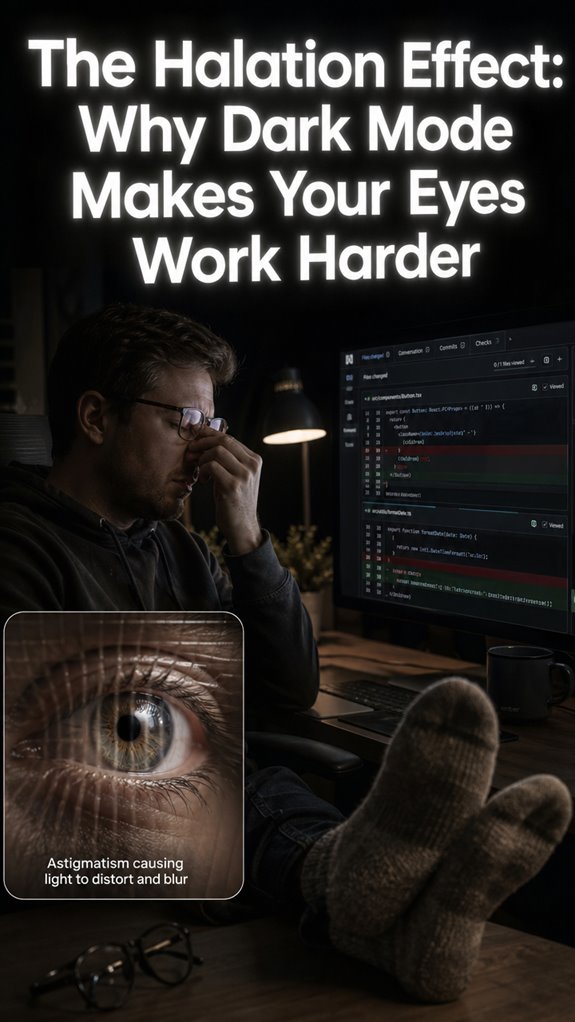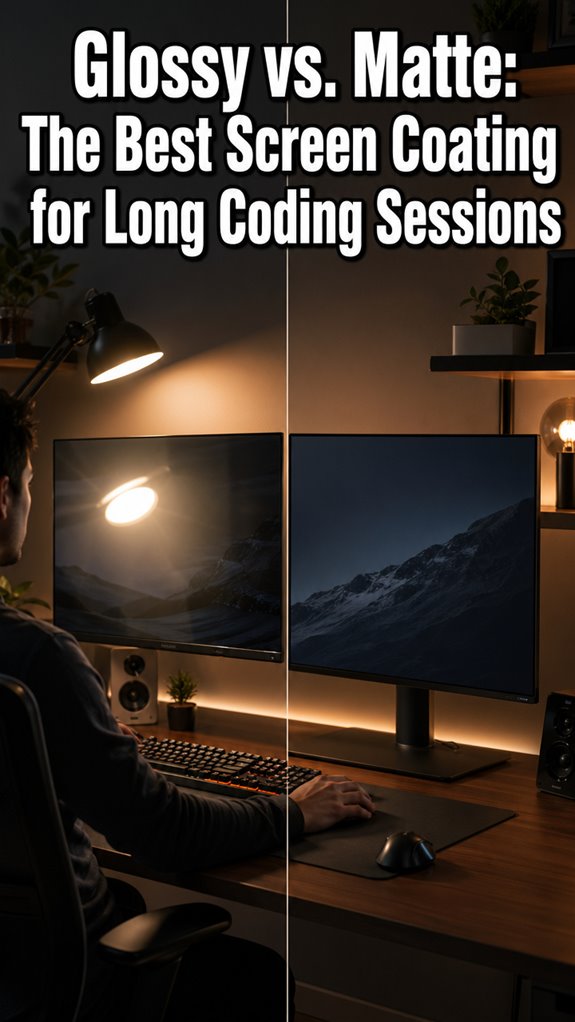
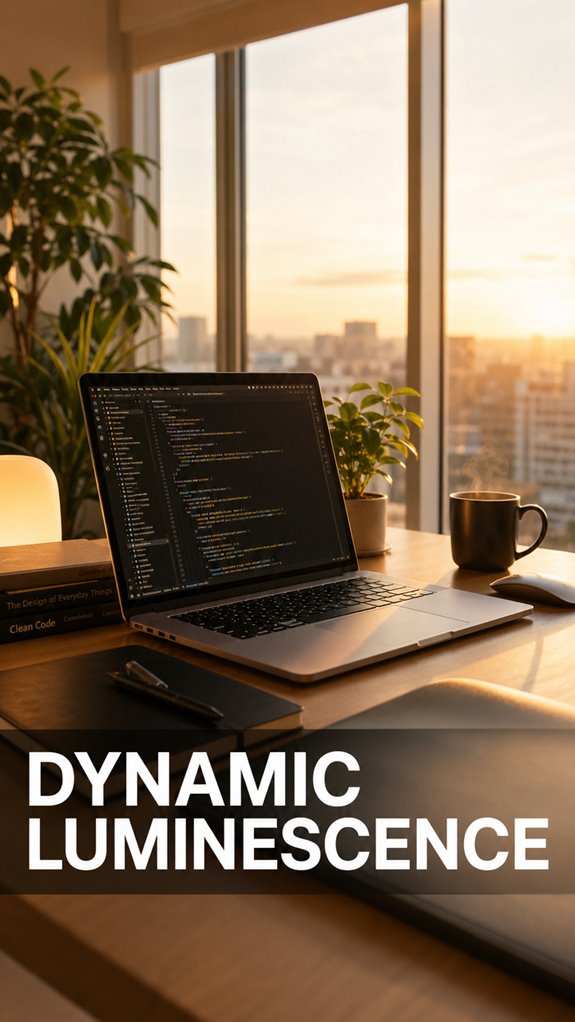
Why does my head feel like it’s splitting after a day of coding? Because my screen brightness has been waging war with my office window all afternoon.
I’ve been there. Staring at a blazing white IDE while clouds roll past. My pupils spasm. A dull ache blooms behind my eyes. I used to pop Advil and blame “focus mode.”
Then I actually calibrated my BenQ’s ambient sensor. Delta-E under 2. Wild, right? Now my display breathes with the room. No more debugging my own eye strain in production. The cognitive load just… dropped. Turns out proper display calibration isn’t audiophile nonsense. It’s survival infrastructure.
Why did I wait so long? Same reason I ignored my chair until my back staged a revolt. We polish our dotfiles but ignore the biological runtime.
How Uncalibrated Screens Broke My Daily Flow (and Maybe Yours Too)
Tuesday last month. Deep in a React refactor. My VS Code theme: Solarized Dark. Elegant. Professional. Also completely static while golden hour flooded through my blinds. I didn’t notice the slow burn. Just… fuzzy thinking. Rereading the same useEffect hook four times. Blamed dehydration. Brewed coffee. Still fog.
My girlfriend walked in. “Why is your screen so dim?” It wasn’t. My retinas had normalized the glare into invisible noise. She grabbed my Spyder X from the drawer (birthday gift, unused, obviously). Two clicks. The calibration hit. My code snapped into sudden, almost violent clarity. I felt robbed. Of how many afternoons?
That evening, I fell down the rabbit hole. Blue light filters. F.lux vs. Windows Night Light vs. macOS True Tone. Discovered my “gaming monitor” shipped with color temperature set to “flesh-melting arctic.”
The ergonomics people warned us. monitors, circadian rhythms, digital eye strain, photobiology. We mocked them for standing desks. Meanwhile our visual cortex burns glucose compensating for hardware we never configured.
Now? My display tracks ambient lux in real-time. Pupillary reflex actually works. I know because I stopped reflexively rubbing my temples at 4 PM. Still drink too much coffee. But at least it’s not covering for my crap screen settings.
Quick Takeaways
- Photodiode arrays detect ambient light across spectral bands and transmit normalized luminance data to GPU brightness daemons.
- Sensor fusion protocols combine multiple wavelength measurements for accurate calibration and real-time dynamic display adjustment.
- Luminance matching between display and ambient lighting minimizes pupillary strain and prevents cone cell exhaustion.
- Auto-brightness should be disabled during critical tasks requiring deterministic visual control like color grading or hex validation.
- Blue light filtering during evening hours prevents melatonin suppression and circadian rhythm disruption from extended screen exposure.
How Ambient Light Sensors Detect Your Environment?
When you’re staring at your monitor at 2 AM debugging a race condition that shouldn’t exist—yet does—your phone’s ambient light sensor is simultaneously executing its own lifecycle: photodiodes detecting photon flux, converting it to electrical current, and transmitting luminance data upstream to your display controller.
You’ve got ambient light sensors leveraging photodiode arrays that measure incident illumination across multiple spectral bands. The sensor samples environmental lux values, filters noise through capacitive dampening circuits, then forwards normalized luminance coefficients to your GPU’s brightness daemon. This technology is similar to vertical mice designed for ergonomic comfort, showcasing how advancements optimize user experience. In fact, the integration of ice packs in various technology sectors demonstrates the broader trend toward enhanced user comfort through innovative solutions.
It’s remarkably efficient infrastructure—the irony being that you’re entirely unaware of this mechanical choreography while your own cognitive processes fail spectacularly.
Why Your Eyes Suffer When Brightness Doesn’t Adapt?
Your display’s photodiode array’s been transmitting normalized luminance coefficients upstream, sure—but here’s where the infrastructure breaks down: static brightness values don’t account for your eyes’ own adaptive circuitry, and that mismatch triggers a cascade of physiological failures that’d make any QA engineer weep into their energy drink.
- Pupillary lag desynchronization: Your iris can’t keep pace with sudden luminance shifts, flooding your retinas with excess photons, leading to double vision and other visual anomalies.
- Scotopic-photopic transition failures: Rod-cone handoff deteriorates when ambient conditions shift without corresponding display adjustment, resulting in visual discomfort as your eyes struggle to adapt.
- Melatonin suppression artifacts: Blue-light constancy hammers your circadian rhythm like a botched production deployment.
Your prefrontal cortex hemorrhages cognitive resources managing this biological error correction. Additionally, optimizing essential oil diffusers in your environment can aid in creating a calming atmosphere to mitigate some of this stress.
How to Turn On Auto-Brightness on Windows and Mac
Since your biological wetware’s already operating at 40% cognitive capacity just maintaining homeostasis against your monitor’s hostile luminance profile, you’d benefit from offloading this particular correction loop to the OS-level scheduler—much like delegating a memory leak fix to a junior dev before your sprint deadline implodes.
| Platform | Navigation Path |
|---|---|
| Windows 11 | Settings > System > Display > Brightness |
| Windows 10 | Settings > System > Display > Brightness and color |
| macOS Ventura | System Settings > Displays > Adaptive brightness |
| macOS Monterey | System Preferences > Displays > Adaptive brightness |
| Legacy | Manual toggle required |
You’re fundamentally enabling sensor-driven PWM modulation, delegating real-time luminance calibration to ambient light detection hardware rather than maintaining conscious vigilance over brightness sliders while executing cognitive tasks. Your eyes can experience strain similar to that of lateral epicondylitis if you’re constantly adjusting your screen’s brightness manually, which makes auto-brightness all the more beneficial. Prolonged eye fatigue can also lead to shoulder leaning pain, so utilizing features like auto-brightness helps mitigate overall discomfort.
Blue Light and Sleep: What the Science Shows
Blue light’s spectral composition—specifically wavelengths between 460-480 nanometers—triggers suppression of melatonin production in your suprachiasmatic nucleus, effectively convincing your circadian rhythm that you’re still operating under midday sun conditions.
- Continuous blue-light exposure degrades sleep architecture, fragmenting REM cycles and increasing sleep latency by 30-90 minutes. Additionally, extended periods of screen time can lead to increased discomfort and strain on your wrists, making the use of gel wrist rests a prudent choice for prolonged sessions.
- Your pineal gland’s melatonin synthesis halts during peak screen hours, creating cascading metabolic inefficiencies.
- Evening coding sessions permanently desynchronize circadian oscillators, degrading cognitive performance during subsequent sprints.
You’re fundamentally debugging your own wetware while the system’s still running.
Your neural infrastructure requires a proper shutdown sequence—not continuous runtime like some poorly architected microservice.
Recent studies indicate that screen time exposure just before sleep can exacerbate these effects, making it even more crucial to manage light exposure in the evenings.
Customize Your Auto-Brightness: Monitor Calibration and Advanced Settings
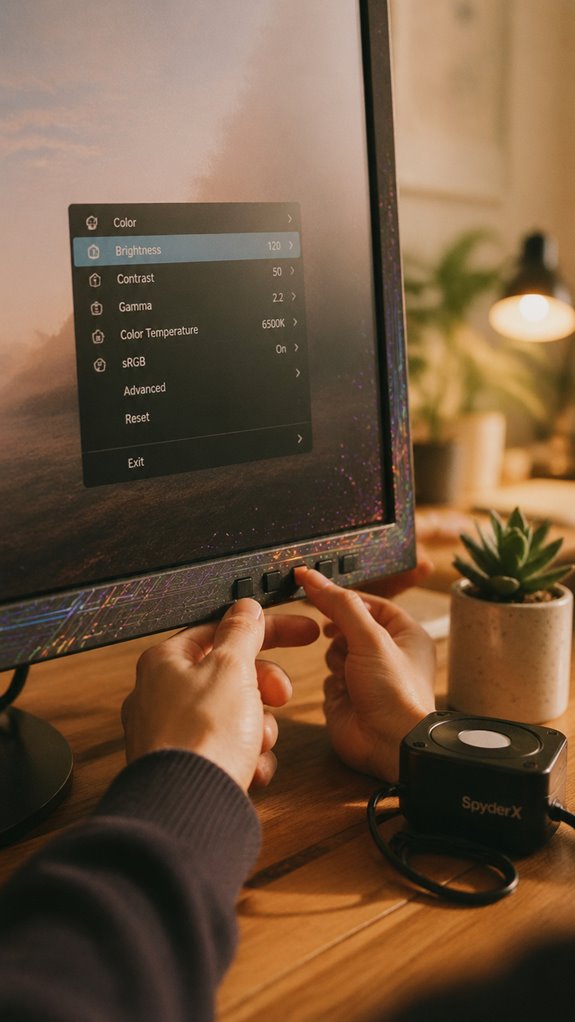
The practical solution involves stepping into your monitor’s OSD settings—usually accessed through physical buttons that feel like they were designed by someone who’s never touched hardware in their life—and adjusting gamma, color temperature, and contrast curves for your actual working environment. Incorporating walking breaks into your routine can also help refresh your perspective and enhance focus after adjusting your setup.
You’re fundamentally reverse-engineering your display’s color space through iterative calibration.
Most developers skip this entirely, then wonder why their carefully composed UI looks catastrophic on production hardware.
Use a colorimeter if you’re serious; otherwise, you’re debugging by intuition, which isn’t debugging at all.
Consider utilizing top massage ball sets when you need to relieve tension after long hours in front of the screen.
When to Use Manual Brightness Control Instead
While you’re debugging a critical production issue at 2 AM, your OS’s ambient light sensor is simultaneously attempting to recalibrate your display based on the fluorescent overhead panel you’ve strategically angled away from your workspace—a macro-system failure in sensor architecture that cascades into granular physiological degradation as your pupils dilate and contract in response to brightness fluctuations that have nothing to do with your actual task requirements.
Manual override becomes operationally necessary when:
- Cognitive load demands stability: Complex algorithmic debugging requires consistent luminous conditions, not adaptive drift; prolonged exposure to blue light can also contribute to skin damage, making stability even more crucial.
- Sensor noise exceeds signal: Environmental variables corrupt calibration; you’re fighting the infrastructure
- Task-specific visual precision matters: Color grading, hex validation, or terminal contrast need deterministic control
Disable auto-brightness. Your prefrontal cortex doesn’t need another adversarial process competing for attentional bandwidth. Additionally, high levels of CO2 can exacerbate cognitive fatigue, making manual brightness control even more essential for maintaining focus.
Protecting Your Eyes During Night Shifts: Settings and Habits
After 0200 hours, you’re fundamentally running production code on deprecated hardware—your circadian rhythm’s deprecated, your sclera’s inflamed, and you’re attempting to maintain mental stack depth while your dopamine receptors are screaming into the void.
Enable blue light filters aggressively. Your retinas aren’t regression-testing stations.
Reduce brightness to 20-30% luminosity. This isn’t aesthetic preference; it’s architectural necessity—you’re preventing phototoxic cascade failures in your photoreceptor cells.
Implement 20-20-20 protocol: every twenty minutes, focus twenty seconds on objects twenty feet away. Stack overflow prevention for ocular systems.
Your eyes aren’t hardware you can replace mid-sprint. High-quality earbuds can also make a difference by providing a more immersive audio experience, reducing the strain from environmental noise.
Calibrated Displays Reduce Eye Strain
Your hardware’s been running on deprecated settings this whole time.
When you’ve debugged your display calibration, you’ve fundamentally restructured the macro-system failure cascading from ambient light mismatch to retinal photoreceptor overstimulation. I discovered this after six years of squinting at Retina displays set to factory defaults—essentially running production code without profiling.
Calibrated displays function as:
- Delta-E < 2 color accuracy eliminating wavelength variance
- Luminance matching ambient conditions, reducing pupillary strain
- Gamma correction preventing cone cell exhaustion
The physiology’s straightforward: miscalibrated brightness forces your eyes into constant aperture adjustment, degrading cognitive performance. It’s not sentimentality; it’s infrastructure maintenance. Vagus nerve massage can contribute to overall relaxation and stress reduction, enhancing your focus during prolonged screen time. Additionally, shoulder blade pain can arise from poor posture during extended computer use, exacerbating discomfort while focusing on the screen.
Your system needed upgrades yesterday.
Flickering Causes User Discomfort
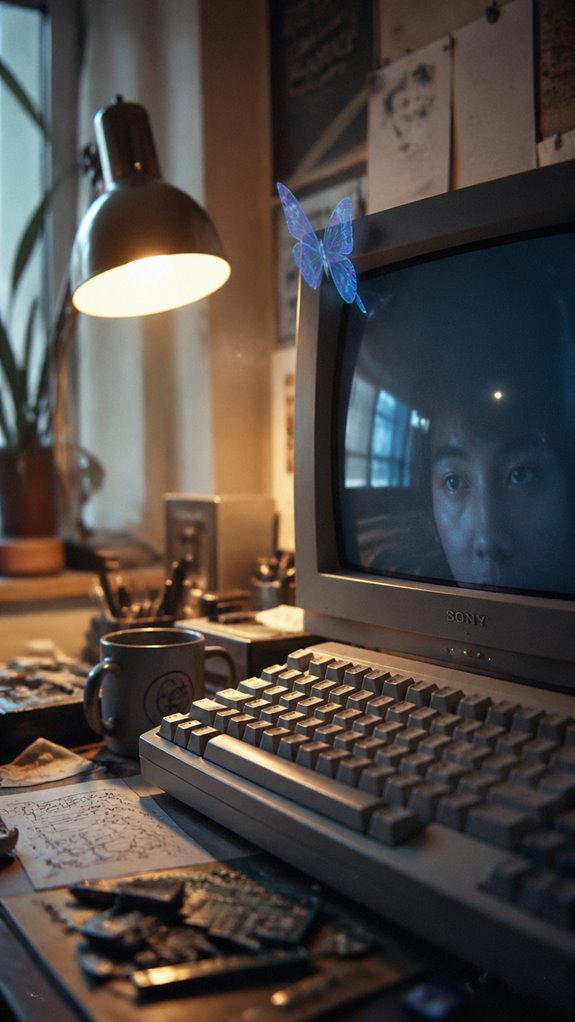
How many times have you shipped production code while your monitor’s refresh rate was silently desynchronizing from your actual cognitive load?
When your display flickers—whether 60Hz, 144Hz, or that cursed 59Hz misconfiguration—your retinas absorb microsecond temporal inconsistencies your conscious mind dismisses.
Your visual cortex, however, doesn’t. It’s parsing phantom frame drops, triggering cascade failures in sustained attention. Your prefrontal cortex taxes itself compensating. Additionally, adjusting screen brightness in response to changing light conditions can significantly alleviate the strain associated with flickering displays.
The downstream effect: headaches, reduced code review efficacy, increased bug deployment rates.
It’s infrastructure collapse wearing an ergonomic disguise. Like debugging with one hand tied behind your back while your monitor whispers lies about smoothness. Additionally, box breathing techniques can be instrumental in managing the mental load caused by such visual disruptions.
Automatic Ambient Light Sensors
Most development environments—particularly those retrofitted into fluorescent wastelands or sun-drenched corner offices—don’t account for the ambient light variable that’s systematically degrading your display calibration throughout the workday.
Your retinas are executing cognitive load calculations against a moving target. Ambient light sensors interrogate environmental luminosity in real-time, feeding data streams into adaptive brightness algorithms. The system architecture mirrors your own neurological parsing: macro environmental assessment cascading into granular pixel-level compensation.
- Real-time photometric sampling eliminates manual gamma adjustments
- Sensor fusion protocols integrate multiple wavelength ranges simultaneously
- Predictive calibration models anticipate circadian rhythm fluctuations, ensuring that your screen brightness adjusts to maximize visual comfort during extended use.
Your display becomes less “dumb screen” and more collaborative substrate. Like the cyborg maintaining operational coherence across networked systems, you’re now delegating luminance management to autonomous infrastructure. Additionally, the use of donut seat cushions can offer further support in maintaining comfort during long hours in front of a screen.
FAQ
Does Dynamic Luminescence Work Effectively in Direct Sunlight or Extreme Lighting Conditions?
You’ll find dynamic luminescence struggles in direct sunlight because ambient light sensors can’t always distinguish peak brightness levels accurately. You’ll need manual adjustments or specialized HDR displays to overcome these extreme lighting challenges effectively.
Which Devices and Operating Systems Support Ambient Light Sensor Technology for Auto-Brightness?
You’ll find that 87% of modern smartphones now feature ambient light sensors. Your iPhone, Android devices, Windows laptops, and tablets all support auto-brightness. You’re leveraging sophisticated photodiodes that continuously calibrate your display’s luminescence.
Can Auto-Brightness Settings Drain Battery Life Faster Than Manual Brightness Control?
You’ll find that auto-brightness actually conserves battery better than manual control. Your device dynamically adjusts luminescence to ambient conditions, preventing unnecessary high brightness levels that drain power faster than adaptive algorithms optimize.
How Often Should I Recalibrate My Monitor’s Ambient Light Sensor for Accuracy?
You should recalibrate your monitor’s ambient light sensor quarterly or whenever you notice accuracy drift. If you’re relocating your setup or experiencing inconsistent brightness adjustments, recalibrate immediately for ideal performance.
Are There Health Risks From Prolonged Exposure to Screens With Adaptive Brightness?
You’ll experience minimal health risks from adaptive brightness since it reduces eye strain by minimizing contrast fluctuations. However, you shouldn’t ignore blue light exposure or screen time duration—those factors matter more than brightness adaptation technology itself.